
You can sync CNT’s ShulCloud calendar to Google calendar, iPhone/iPad, or Outlook so that TBB calendar events automatically appear. Look for instructions from your app or device if you are using another calendar. Other devices and apps can likely sync the CNT calendar using the WebCal link available in the final step of these instructions.
Go to https://lvnertamid.shulcloud.com/calendar and click ‘More Filters/Views.’
Select the Export/WebCal layout, select iCal/WebCal Export, and click SETUP ICAL.
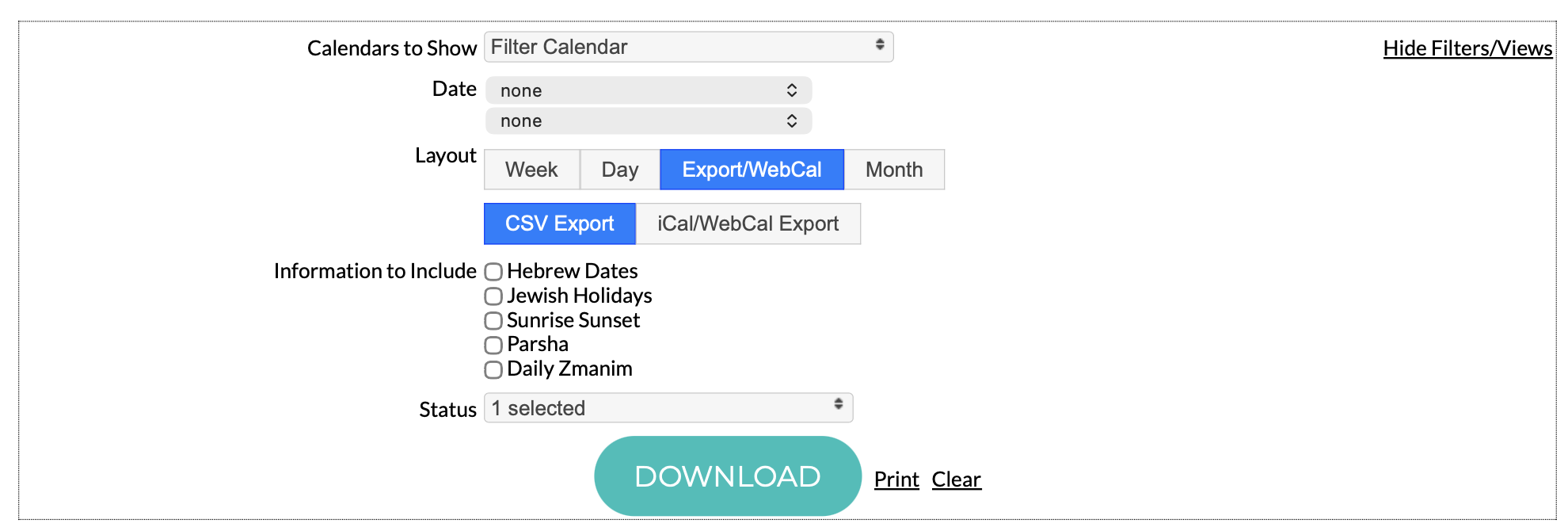
After clicking SETUP ICAL, choose which calendars and information to sync over to your calendar:

Once you have chosen what you are interested in syncing over, click whichever link is applicable: Add to Google Calendar, Add to iPhone/iPad, Add to Outlook (Desktop Version), or Download iCal File.
If none of these apply to you, follow your device or calendar app’s instructions for syncing calendars using a WebCal link. Highlight and copy the text in the box to paste into your alternate calendar’s settings according to its instructions.
Step 1
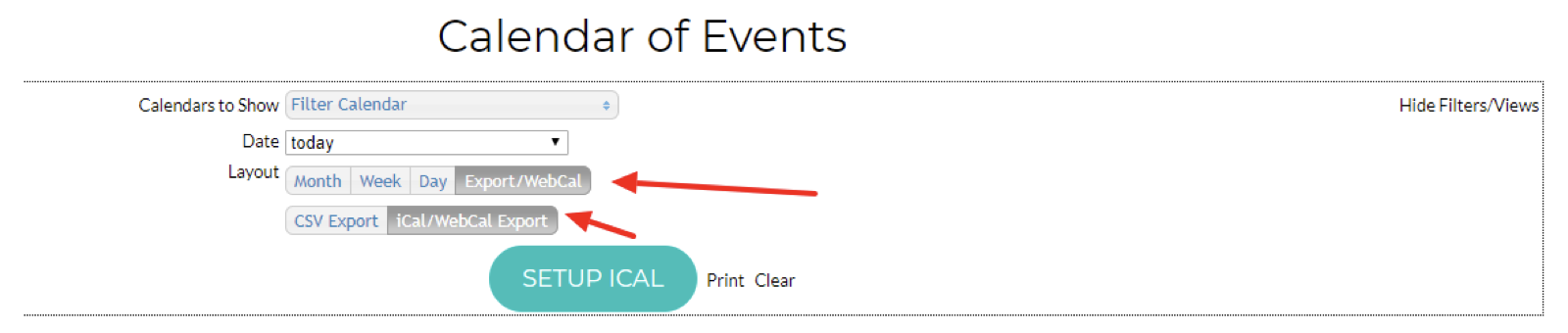
Go to your Calendar of Events and click ‘More Filters/Views’ on the top
right. Choose the Export/WebCal layout and then iCal/WebCal Export:
Step 2
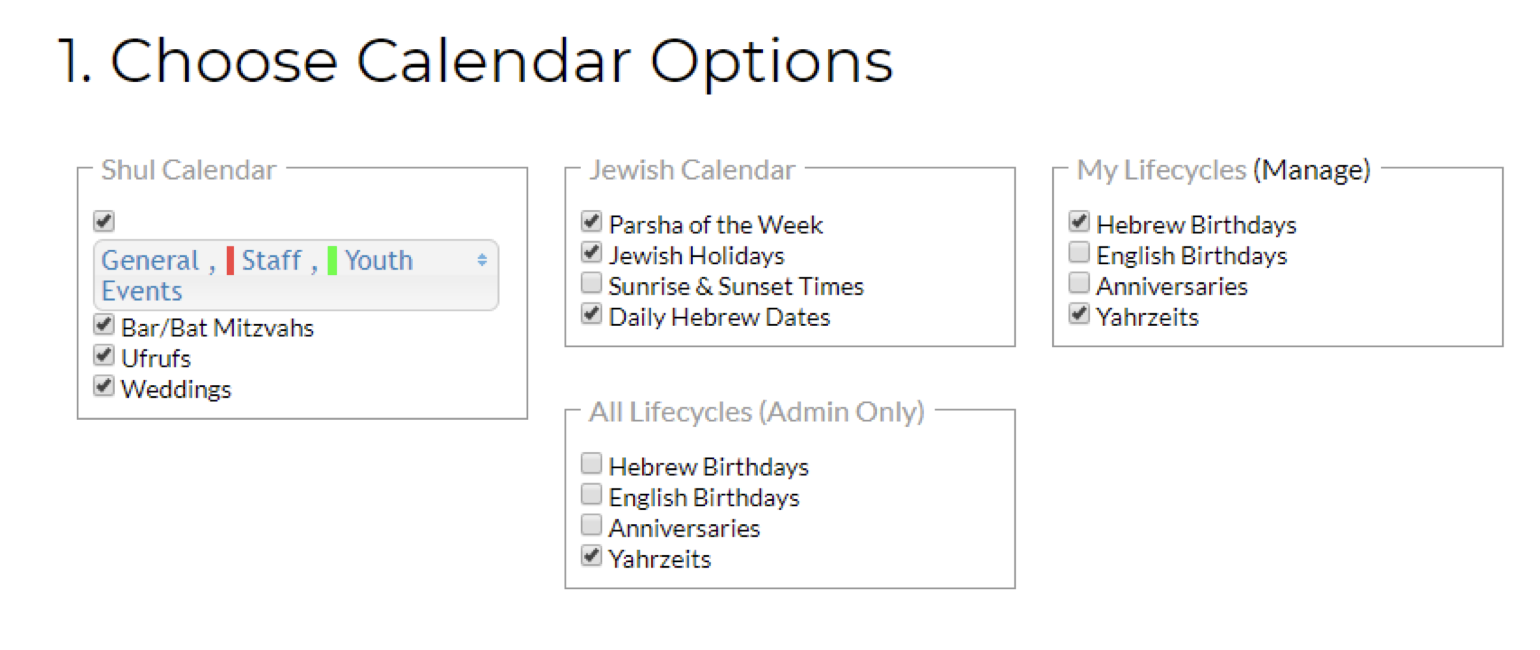
After clicking Setup iCal, you will have the options of choosing which
calendars and what information to sync over to your Google calendar:
Step 3
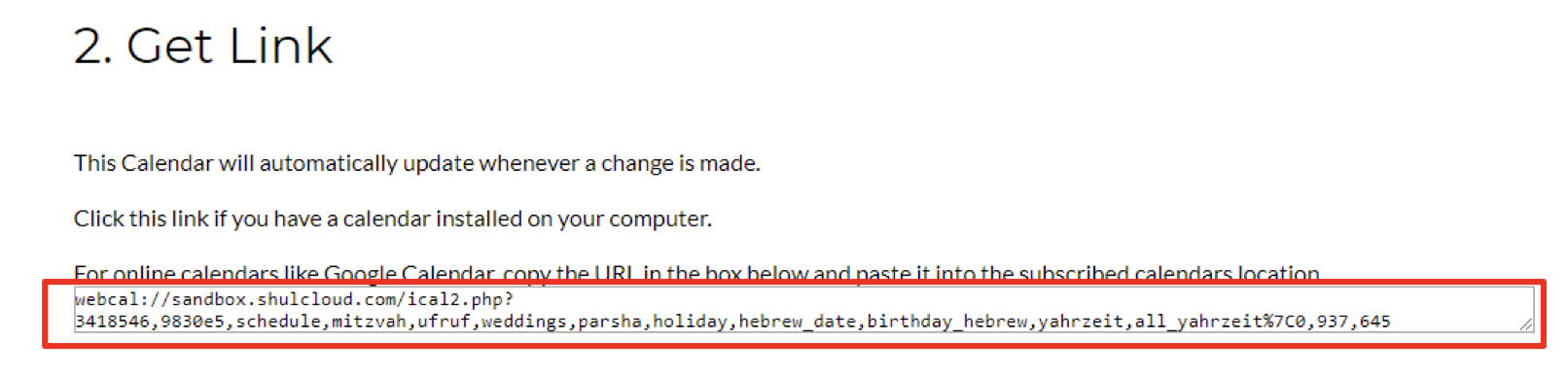
Once you have chosen the filters you are interested in syncing over,
highlight and copy the text in the box to paste into your Google calendar
Step 4
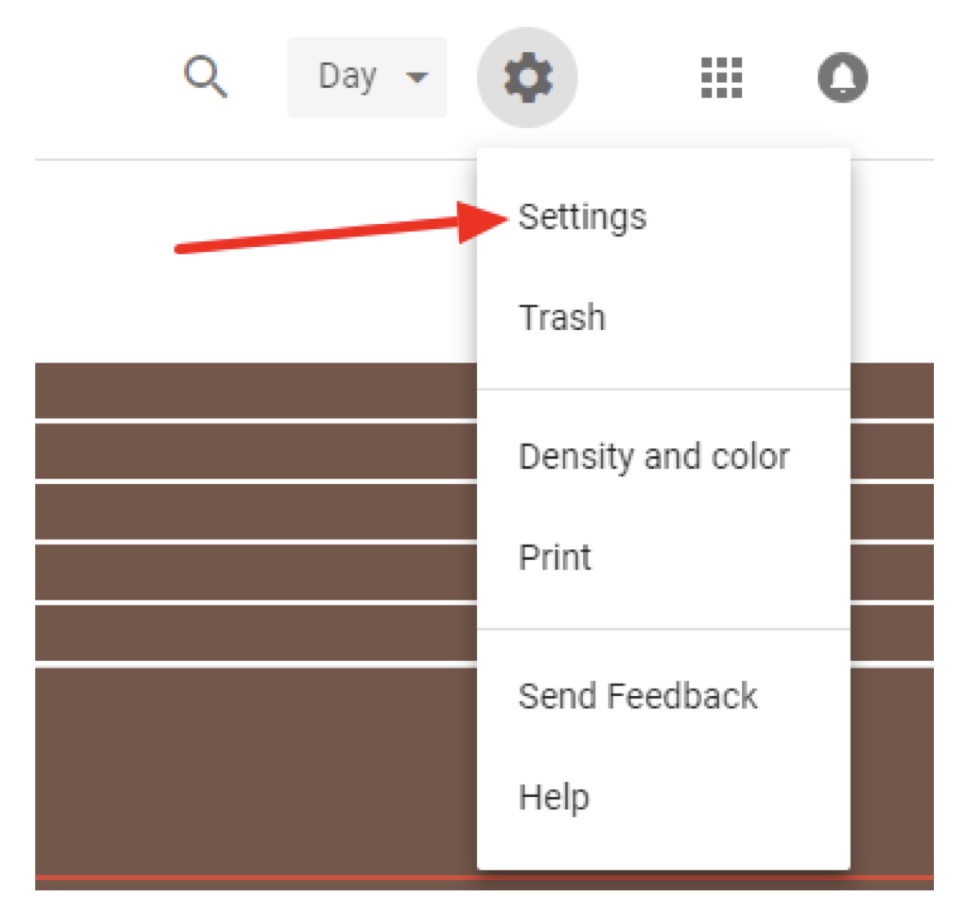
Go to the calendars tab in your Google account and click on the settings
option under the cog at the top:
Step 5
Click Add Calendar on the right to expand the options and select From
URL: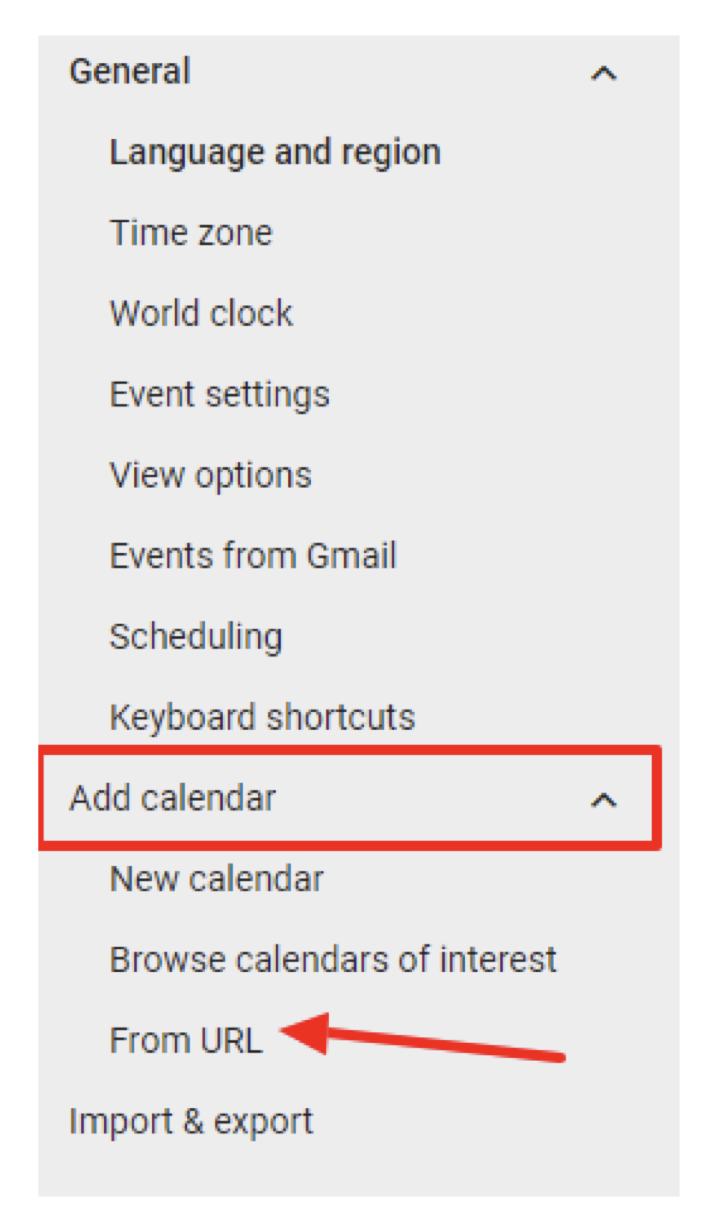
Step 6
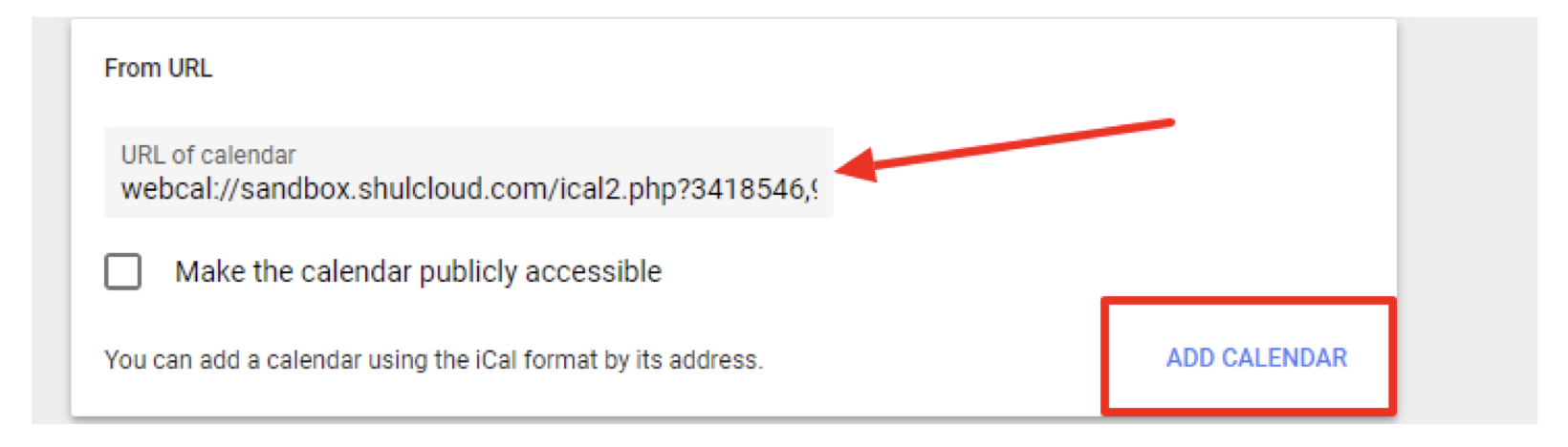
Paste the copied URL from ShulCloud here:
Step 7
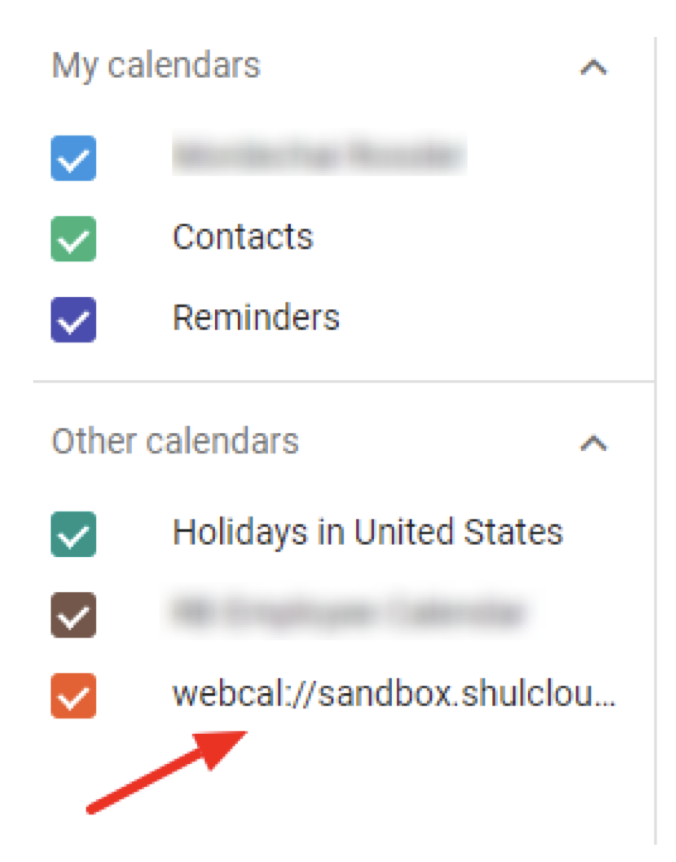
Find the Calendar on the bottom right next to any other Calendars you
have synced with Google:
You’re all set!
The CNT calendar will immediately appear on your Google calendar.
Any additions and changes made to CNT’s calendar after you set up the sync will appear as soon as Google processes them, usually less than 12 hours.
